Drivers use the FoolProof Driver app on their phone (drive.foolproofpos.com) to take offers, check ID at the door, and get a signature — you turn it on per employee and verify them first.
A step-by-step walkthrough with real screenshots · FoolProof POS for alcohol retail
Steps
In Employees, click Edit on the person and tick Can make deliveries (driver app access), then Save.
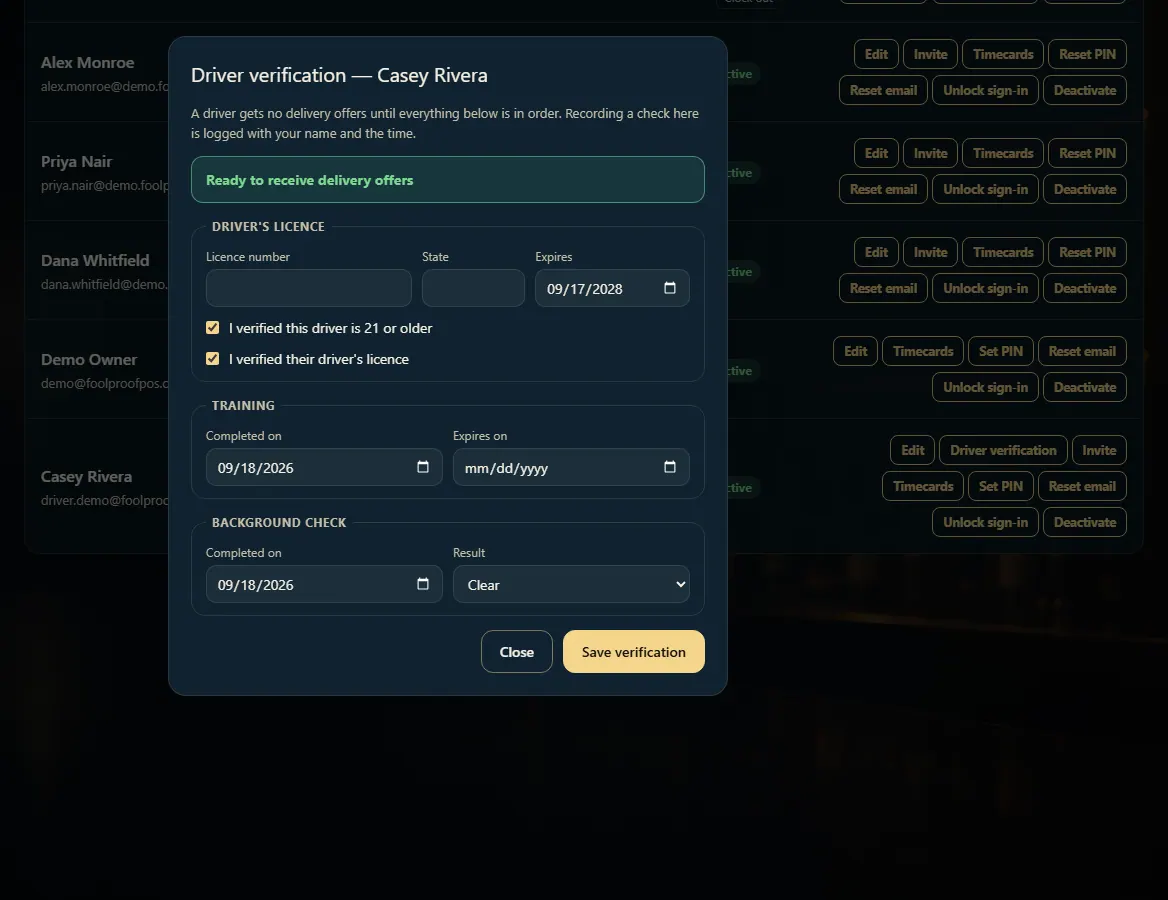
Click Driver verification on their row and record their licence, the 21+ and licence checks, training, and background check. They get no offers until it says Ready to receive delivery offers.
The driver signs in at drive.foolproofpos.com with their email or phone and password, turns on location, and taps Go on duty.
An offer pops up with what they'll earn — they tap Accept or Decline before it expires.
At the store they tick the three checks and tap Mark picked up, then drive and tap I'm here.
At the door they tap Scan the back of the ID and hold the phone over the barcode on the back of the licence — it reads it live, no photo. They tick that the person matches the photo on the ID, tap Check the ID, then get a signature and tap Complete delivery.
If the ID fails, won't scan, or something is wrong, they tap Refuse it, pick a reason, and bring the order back. Can't scan the ID opens the refusal with ID would not scan or did not pass already picked.
Good to know
The driver app needs the role permission Use the driver app (take and complete deliveries). If a driver's row shows Role can't use the driver app, open Roles and tick it on their role.
A refusal at the door is saved to Refused Sales automatically, as your dram-shop record.
A driver's licence number is stored encrypted. After you save it, only its last four digits are shown; type a new number to replace it.
The door check keeps the result, birth date, expiry, last four digits and whether the name matched. The recipient's address and full licence number are read to decide and then dropped.
How the driver checks ID at the door, and how long they have to accept an offer, are set in Admin → Delivery.
1. Verify the driver
Every item here must be recorded before the driver gets a single offer. Each check is logged with your name and the time.
12
1Their licence, and that you checked it and their age.
 12
12