Use New order on the Orders page for a call-in pickup, or New delivery order to take a delivery over the phone.
A step-by-step walkthrough with real screenshots · FoolProof POS for alcohol retail
Steps
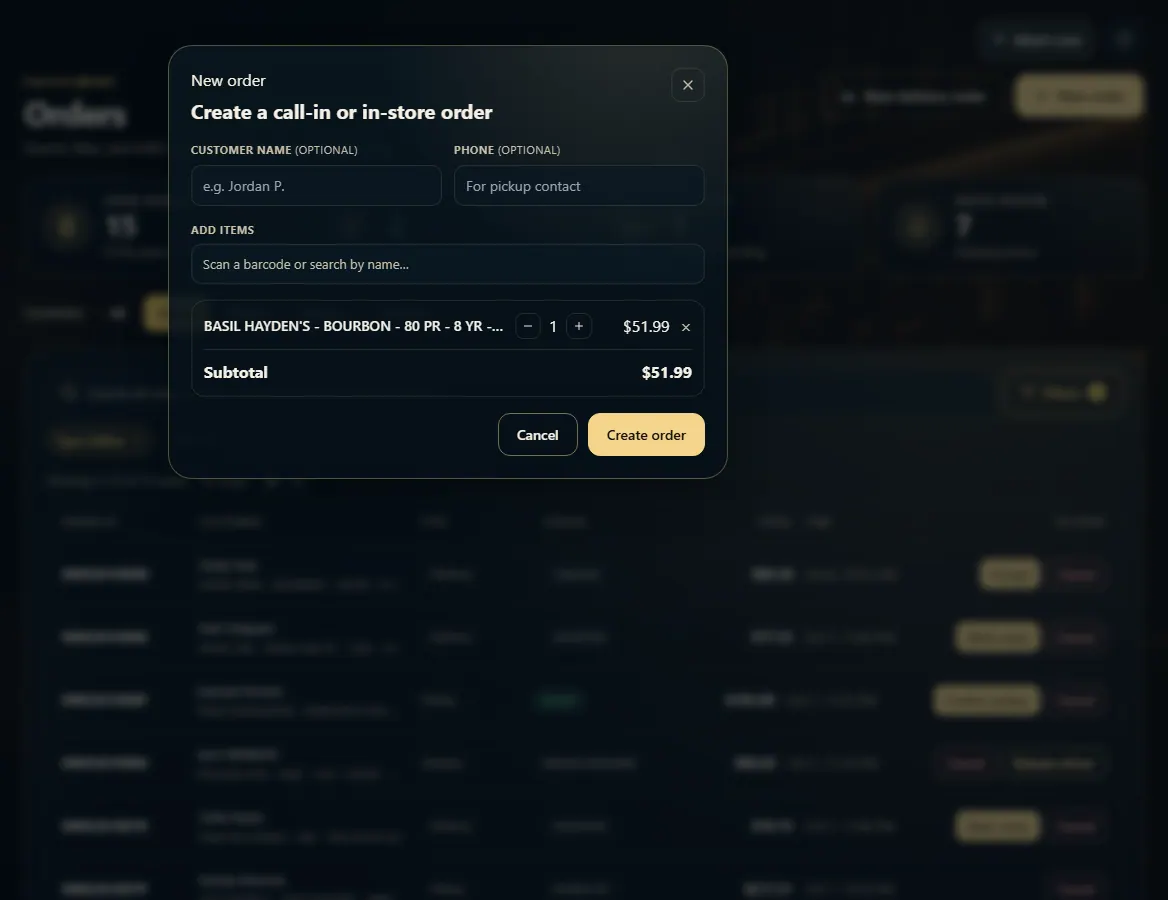
Open Orders and click New order.
Add the customer's name and phone if you have them (both optional).
Scan or search to add items, and use + and − to change quantities.
Click Create order. It joins the list and is worked like any other order.
For a delivery, click New delivery order instead: enter the customer's name and phone and the delivery address, then click Check address. Add the items, the delivery fee and tip, tick Customer confirmed 21+ and Payment collected, then click Create order — or Create & send to drivers to send it out straight away.
Good to know
New order creates an open order with no payment on it — the customer pays when they collect.
1. Build the order
Add the customer if you like, then scan or search for each item.
 123
123