Taking a Sale
A step-by-step walkthrough of the everyday register flow: signing in, reading your dashboard, ringing up a sale (including one-tap bundles), and reviewing orders.
1. Signing in
Open the merchant app in your browser and you'll land on the sign-in screen.
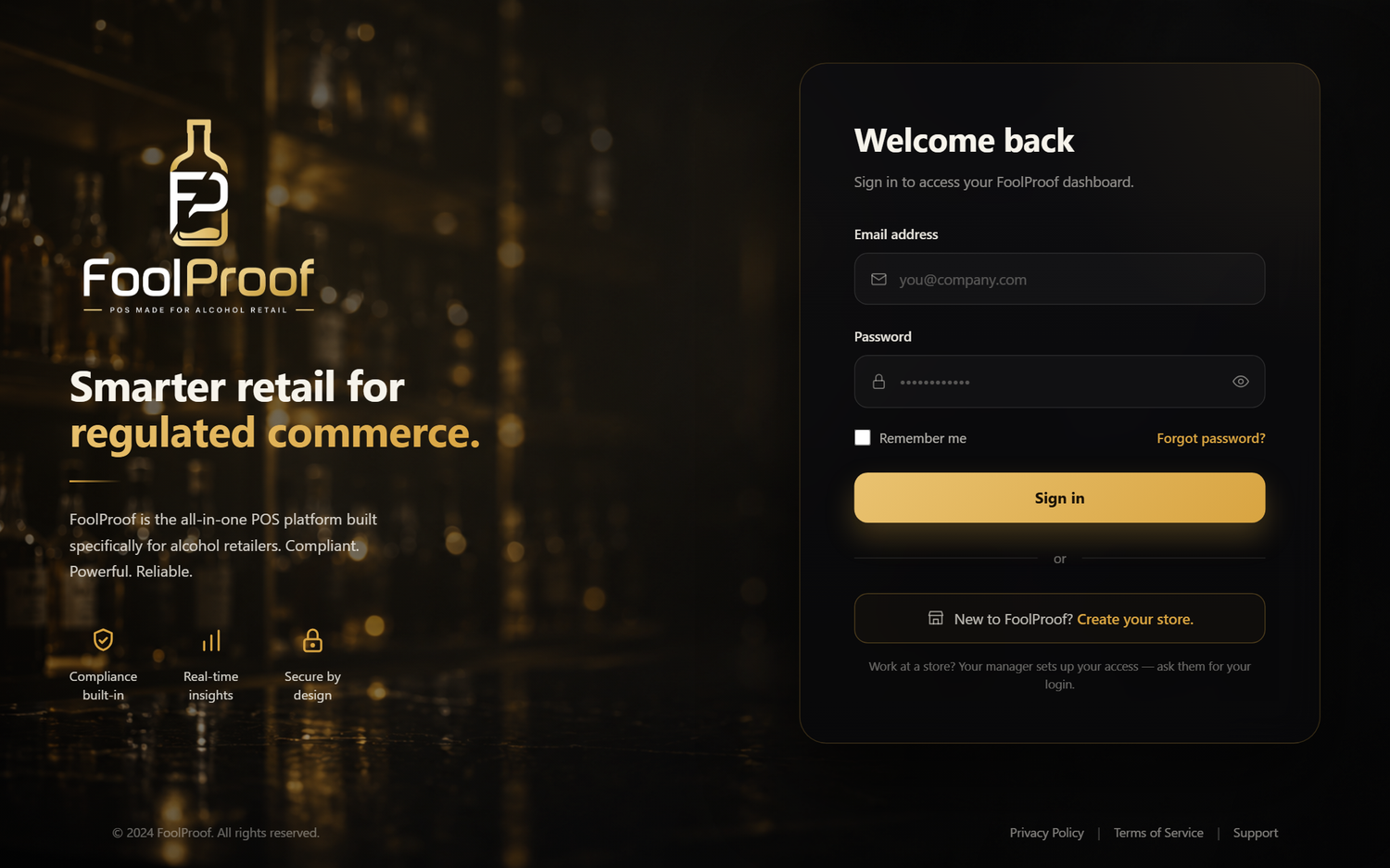
- Enter the email address and password your manager set up for you.
- Check Remember me on a trusted store device so you don't sign in every shift.
- Tap Sign in.
2. The Today dashboard
After signing in you arrive at Today — a live snapshot of the store right now.
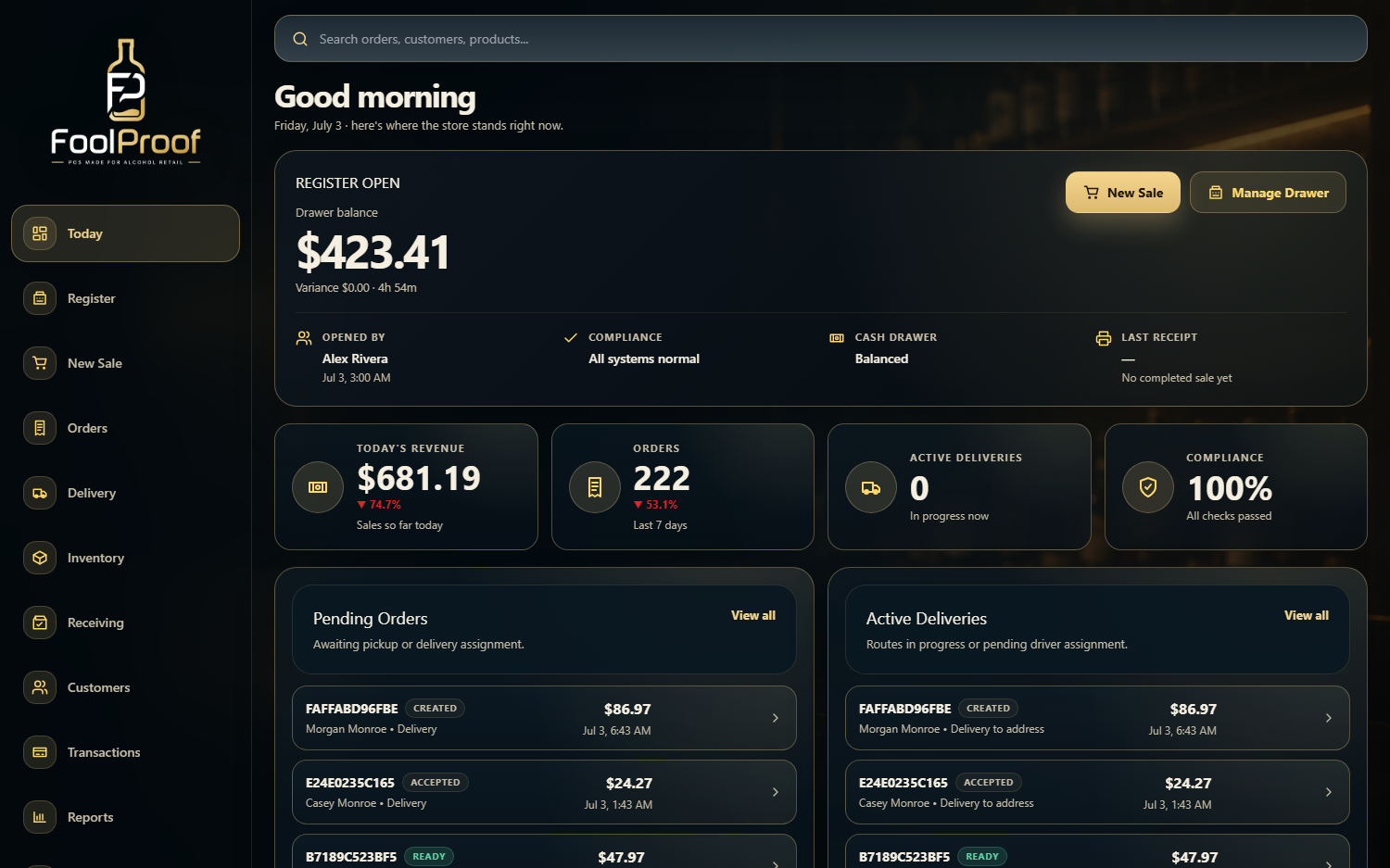
| Area | What it tells you |
|---|---|
| Register Open | The current drawer balance, who opened it, and when — the number you're accountable for at close. |
| Revenue / Orders / Deliveries / Compliance | Four at-a-glance tiles for the day's sales, order count, deliveries in progress, and whether all compliance checks pass. |
| Pending Orders | Orders awaiting pickup or delivery — your work queue. |
| Active Deliveries | Routes in progress or waiting on a driver. |
Two shortcuts sit in the Register Open card: New Sale jumps to the register, and Manage Drawer lets you count or adjust cash.
3. Ringing up a sale
Tap New Sale in the sidebar (or the New Sale button on the dashboard).
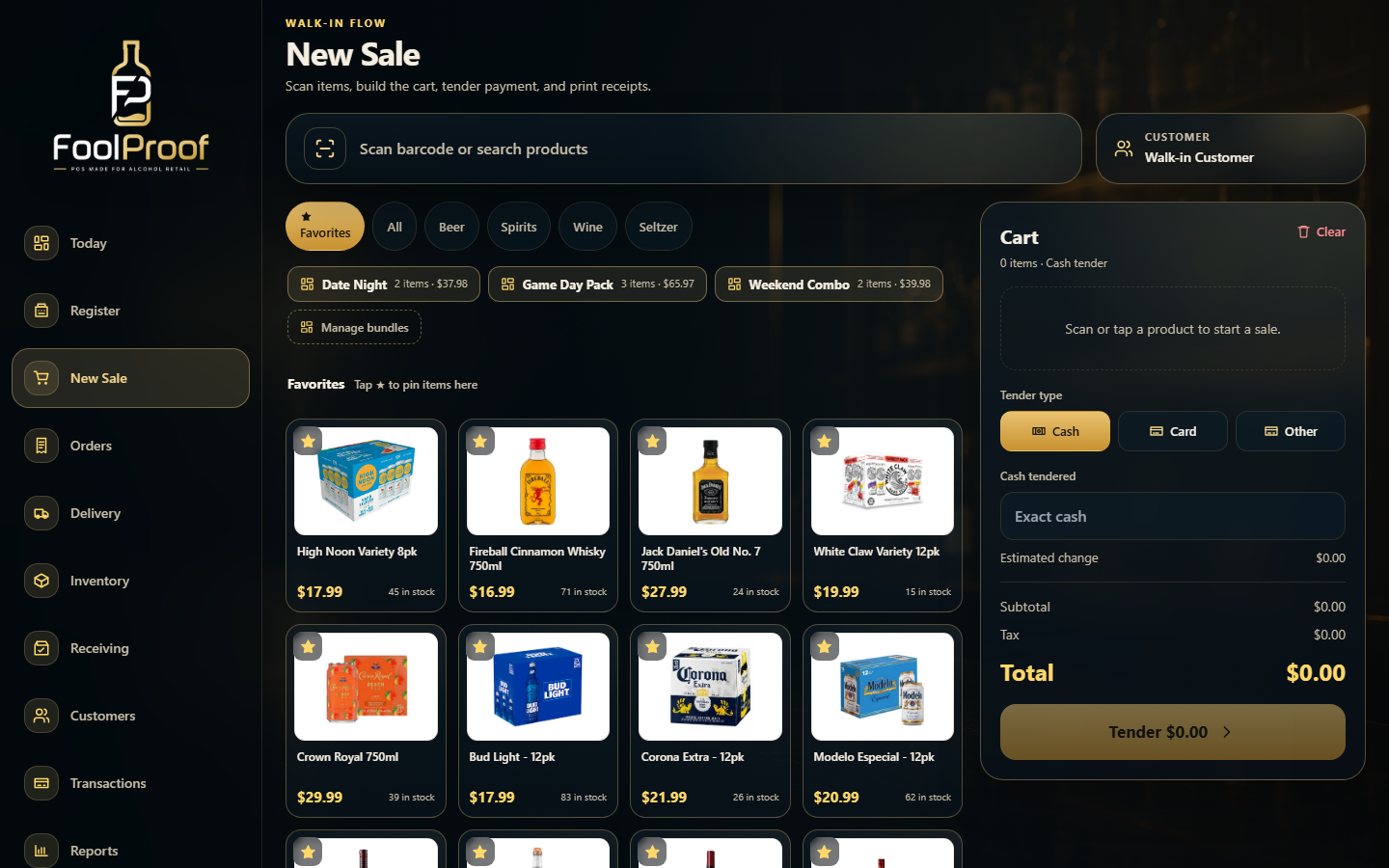
The register has three zones:
- Search / scan bar (top). Scan a barcode or type a product name — matches appear as you type.
- Category chips + Favorites. Filter by category (Domestic, Whiskey, Red Wine…) or tap a Favorite tile to add a common item in one tap. Star an item to pin it here.
- Cart (right). Every item lands here with a running Subtotal, Tax, and Total.
To complete a sale
- Add items — scan, search, or tap favorites/bundles until the cart is right.
- Choose the customer (optional) — leave as Walk-in Customer, or attach a profile.
- Pick a tender type — Cash, Card, or Other. For cash, enter the amount tendered and FoolProof shows the change due.
- Tap Tender to finish. Tax and compliance are calculated automatically per item — you never do the math or check the rules by hand.
4. Bundles — sell a set of items in one tap
A bundle ("baggie") is a named group of items you sell together — a weekend combo, a party pack, a go-to pairing. Tapping a bundle drops all of its items into the cart at once.
Creating a bundle from the current cart
- Build the cart with the items you want in the bundle.
- Tap Save as bundle and give it a name (e.g. Weekend Combo).
- Pinned bundles appear as one-tap buttons on the New Sale screen, just above Favorites.
Managing and editing bundles
Tap Manage bundles to open the bundles panel. For each bundle you can pin/unpin it from the register, rename it, edit its contents, or delete it.
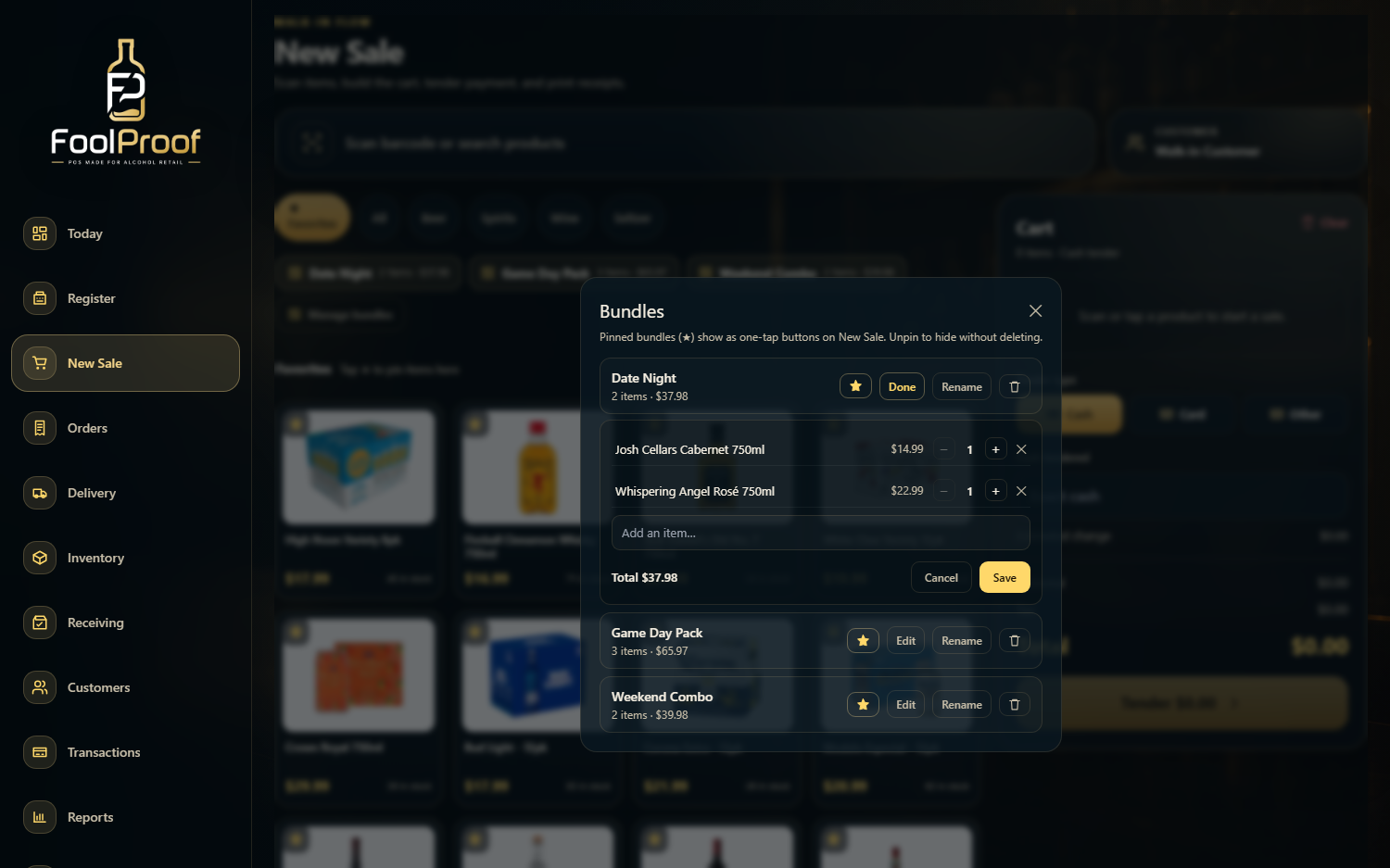
Tap Edit on a bundle to open the editor shown above:
- See every item with its price and quantity.
- Adjust quantities with the −/+ steppers.
- Remove an item with the ×.
- Add an item by typing in the Add an item… box and picking from the results.
- The Total updates live (always the plain sum of the items).
- Tap Save to keep changes, or Cancel to discard them.
5. Reviewing orders
Tap Orders in the sidebar to see every customer order across all channels — in-store, pickup, and delivery.
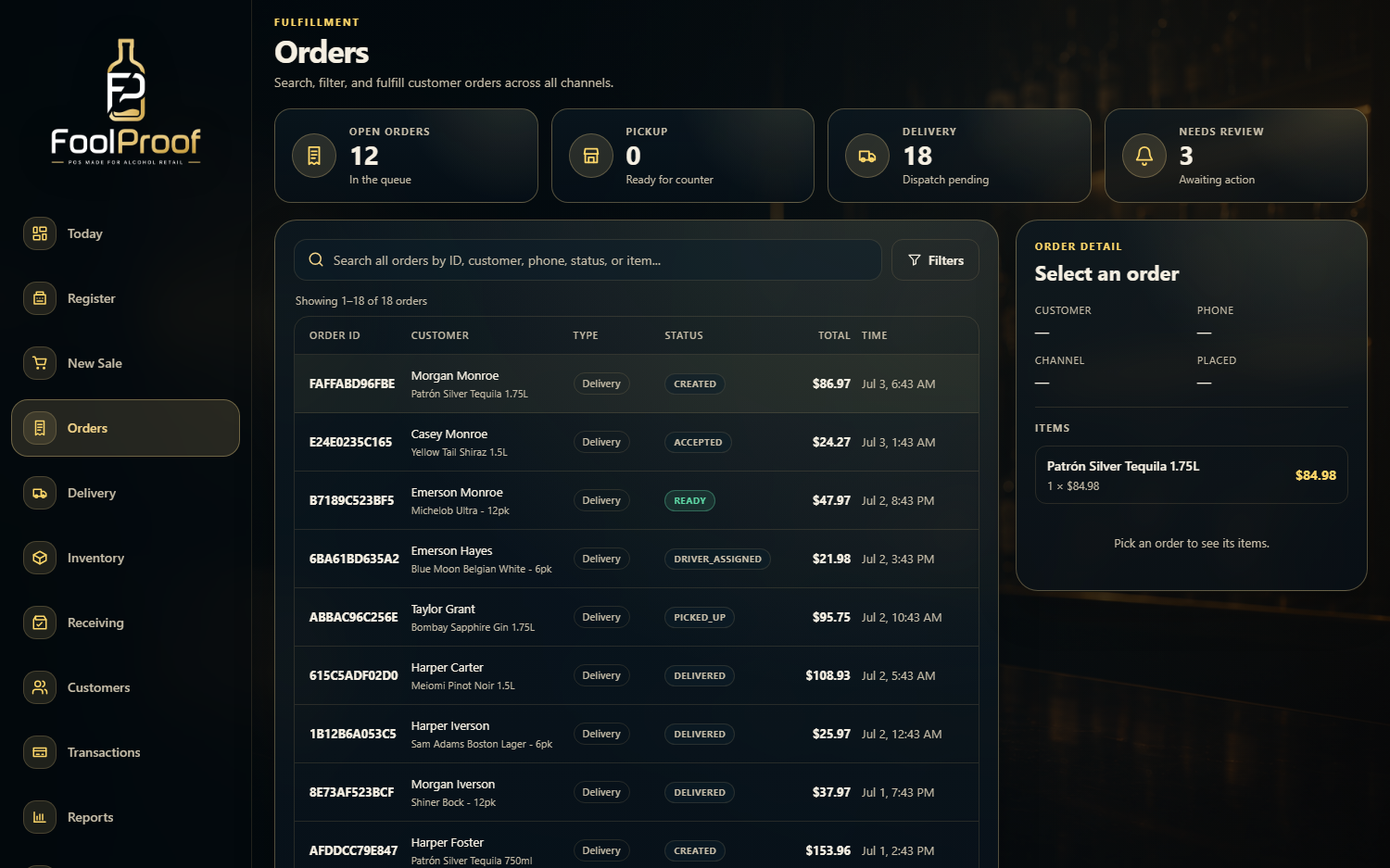
- The status tiles (Open Orders, Pickup, Delivery, Needs Review) show the shape of your queue at a glance.
- The search box finds any order by ID, customer, phone, status, or item.
- Filters narrow the list further.
- Tap any order to open its detail — customer, channel, and line items.
6. Transactions
For a pure sales-history view — every completed transaction with its total, tender, and time — open Transactions in the sidebar. Like Orders, it's fully searchable and sortable across your whole history, which makes end-of-day and audit lookups quick.
Quick reference
| I want to… | Do this |
|---|---|
| Start a sale | Sidebar → New Sale |
| Add a common item fast | Tap a Favorite tile |
| Add several items at once | Tap a bundle button |
| Turn the current cart into a bundle | Save as bundle |
| Change what's in a bundle | Manage bundles → Edit |
| Hide a bundle without deleting it | Unpin it (★) in Manage bundles |
| Take payment | Pick Cash / Card / Other, then Tender |
| Find a past order | Sidebar → Orders, then search |
| Check the drawer | Today → Manage Drawer |