Admin → Hardware is where you add and test your receipt and label printers, set up each register, and choose when the cash drawer opens.
A step-by-step walkthrough with real screenshots · FoolProof POS for alcohol retail
Steps
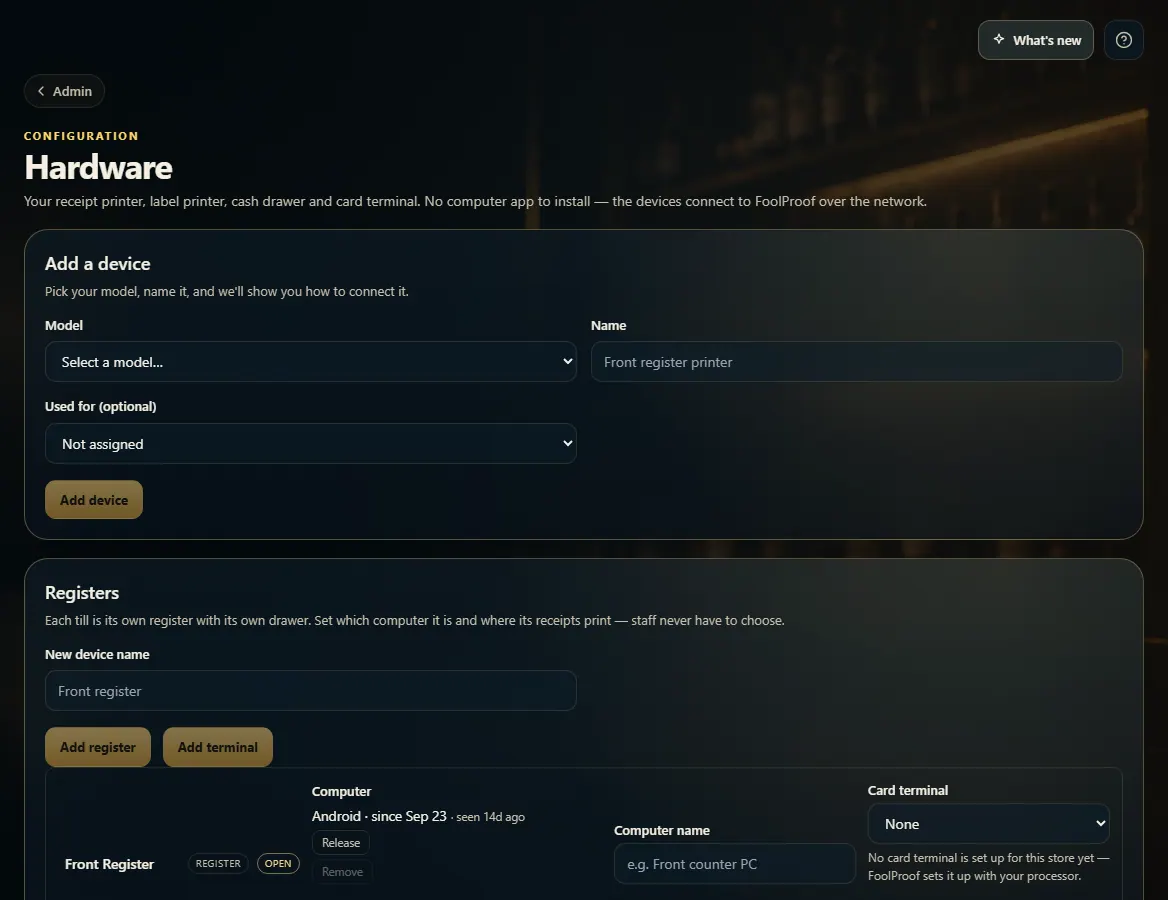
Open Admin → Hardware.
Under Add a device, pick the Model, type a Name, choose what it's Used for, and click Add device. The setup page shows how to connect it.
Click Print test (or Open drawer) on a printer to check it works. The ⋯ menu has Set up / connection details.
Under Registers, type a name and click Add register (with a cash drawer) or Add terminal (card only). Then choose which printer handles each register's Receipts and Labels.
Under Cash drawer, choose Open on cash sales and Open on card sales, and set the Target cash to leave at close.
Good to know
CloudPRNT printers connect to FoolProof over your network with no app to install; USB, Bluetooth and other network printers connect through the FoolProof bridge or desktop app on a store computer. Printers still waiting to connect show Finish setting this up.
Every printer shows how it is connected — ONE path each: CloudPRNT (no computer), Bridge on FRONT-PC · Bluetooth, Bridge on FRONT-PC · Network 192.168.1.50, Bridge on FRONT-PC · USB or Desktop app on REGISTER-1 · Bluetooth.
If the same printer shows up on two paths (for example CloudPRNT and a bridge), it is marked On two paths. Click Use this path on the one you want; the other is kept on standby and never printed to.
A network printer behind a bridge is recognised by its MAC address, so if your router gives it a new IP address the bridge finds it again and shows Found at new address. Press Rescan network in the bridge window to look for network printers (scanning the local network is an opt-in setting in the bridge).
A print that fails says which path it failed on, e.g. "Failed via Bridge on FRONT-PC · Bluetooth: needs re-pairing in Windows Bluetooth settings."
The cash drawer is wired to the receipt printer, so it opens on whichever printer that register uses. If it doesn't open, try Try channel 2.
Close a register before changing its computer or printers. Renaming is fine mid-shift.
A new register is claimed by the next computer that opens the Register screen. Release frees it for another computer.
Card terminals are set up by FoolProof with your payment processor; once one is ready, pick it for each register under Card terminal.
Barcode scanners need no setup: plug one in and it types the code into whatever box is selected.
Shelf-tag layouts are under Admin → Label templates.
1. Add a device and set up registers
Add each printer here, then add your registers. Each register knows which computer it is and where its receipts and labels print — staff never have to choose.
123
1Pick the model, name it, Add device.
2Add a till with a cash drawer.
3Add a card-only station.
2. Test a printer and set the drawer
Each printer has Print test and, for receipt printers, Open drawer. Below them, Cash drawer sets when the drawer pops.
 123
123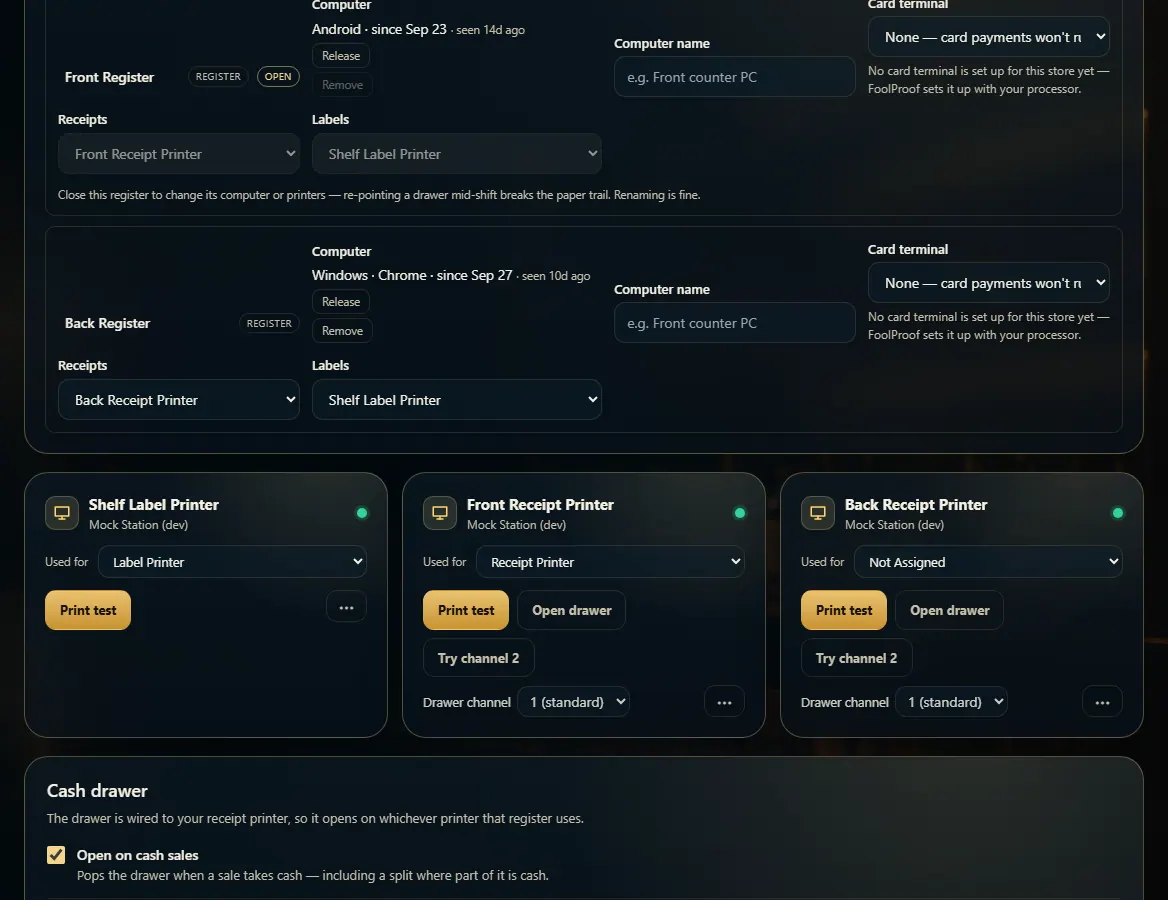 123
123