Admin → Receipts sets the receipt logo, messages and lines with a live preview; Storefront and Storefront pages set up your public website.
A step-by-step walkthrough with real screenshots · FoolProof POS for alcohol retail
Steps
Open Admin → Receipts.
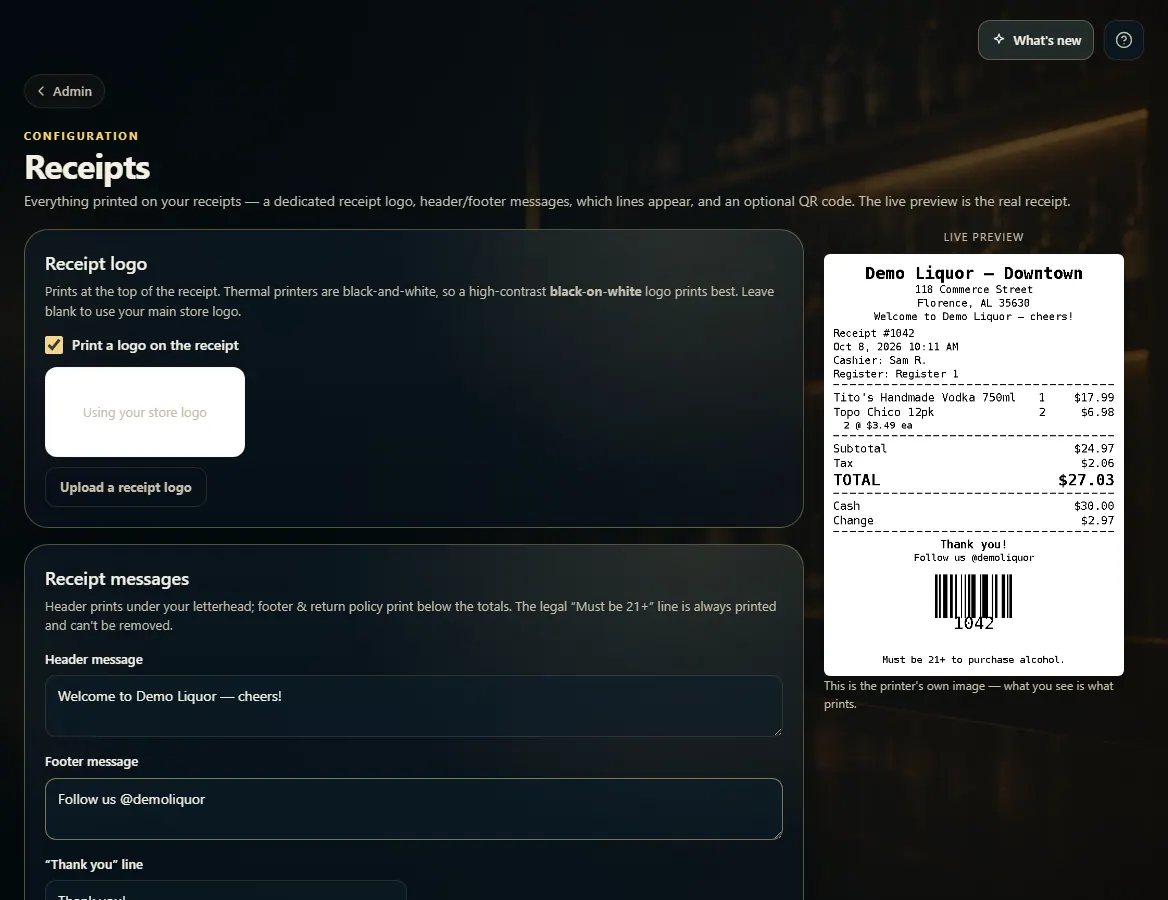
Choose a receipt logo, type a Header message and Footer message, and turn lines on or off under What appears on the receipt. The Live preview shows exactly what prints.
Under Printing after a sale, choose whether a receipt prints automatically, asks, or doesn't print.
Click Save receipt settings.
For your website, open Admin → Storefront: the Design tab sets logo, hero, theme and featured products; the Settings tab sets your web address, delivery/pickup and whether the storefront is live.
To edit About, Terms, Privacy and other pages, open Admin → Storefront pages, pick a page, edit it and click Save page.
Good to know
Your business name, address, phone and license on the receipt come from Admin → Business details.
The legal "Must be 21+" line always prints and can't be removed.
The register close-out slip (what prints when a drawer closes) is set on the same Receipts page.
Sponsored placements on your storefront are part of your agreement with FoolProof and only show where your state's rules allow them. There is no switch for them in the app — to change whether they show, talk to your FoolProof rep.
Delivery radius, fees and hours are under Admin → Delivery.
Card vs licence check (Admin → Storefront → Design) compares an online card payment's billing ZIP with the ZIP on the shopper's verified ID. Flag for review marks a mismatched order Card/ID mismatch on Orders, and you still check the ID at pickup or delivery; Block the order refuses it before the card is charged; Off skips it.
1. Your receipt, with a live preview
Type a header or footer message and the preview on the right updates — it's the printer's own image. Save receipt settings when it looks right.
123
1Prints under your letterhead.
2Prints below the totals.
3Exactly what the printer prints.
2. Storefront pages
Pick a page on the left, edit its text and images, and click Save page. + Add page makes a new one.
 123
123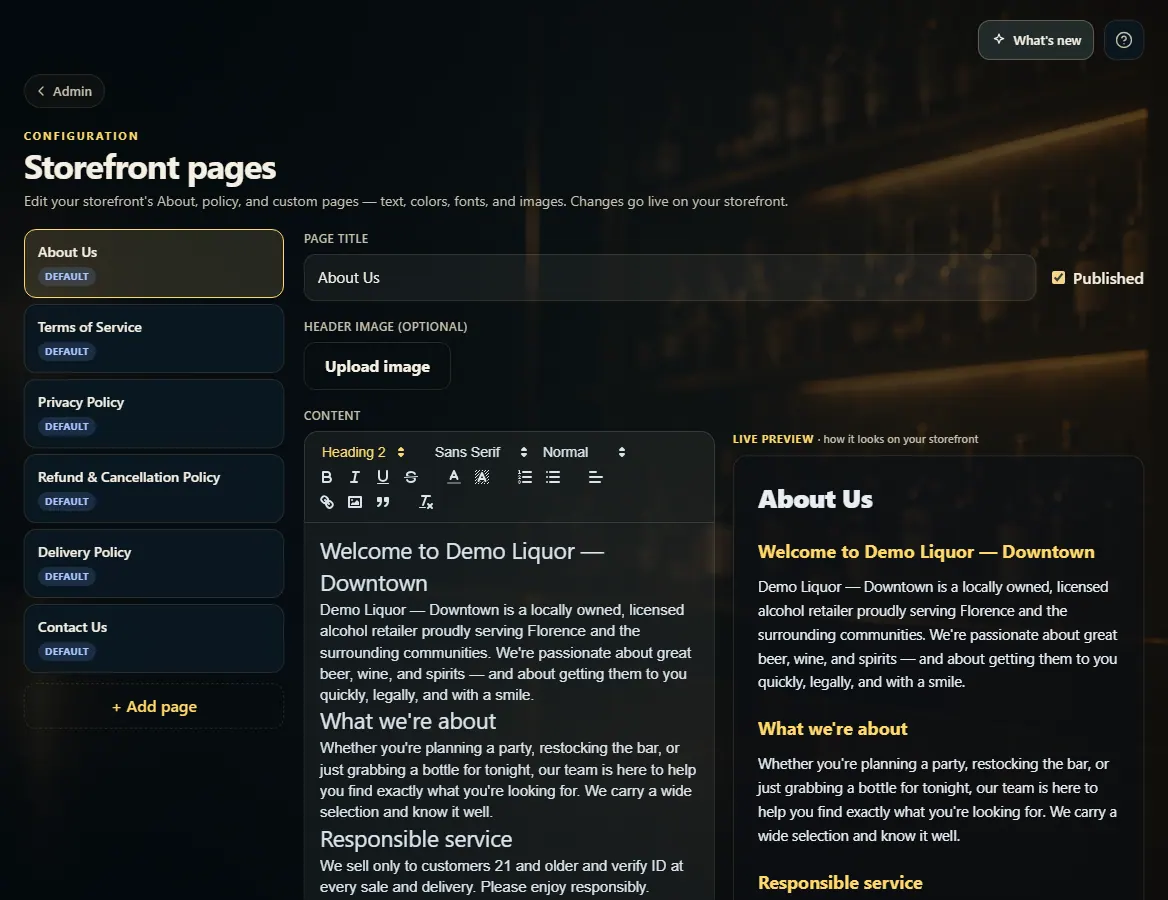 123
123