Admin → Sign-in & security sets when an idle device locks or signs out, and whether staff can switch users with a PIN.
A step-by-step walkthrough with real screenshots · FoolProof POS for alcohol retail
Steps
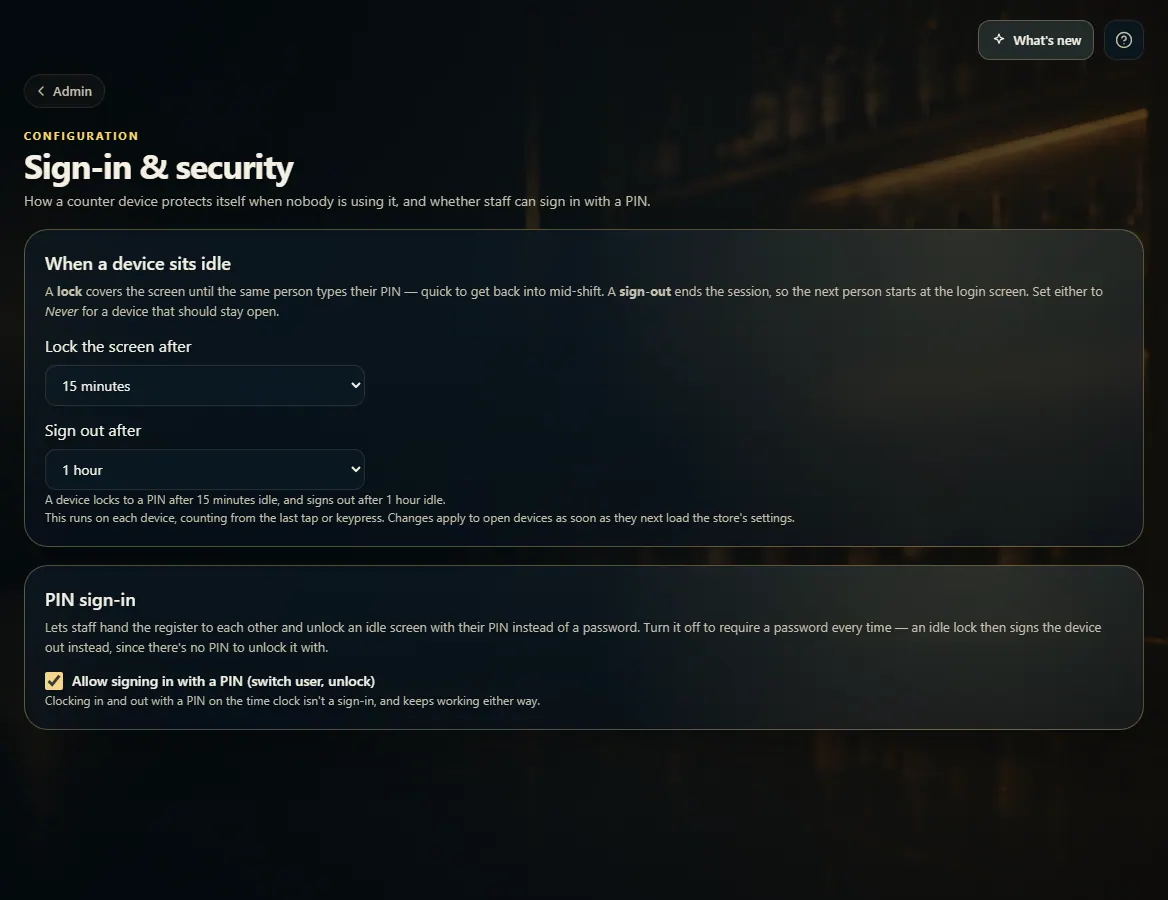
Open Admin and click Sign-in & security.
Choose Lock the screen after (greyed out when PIN sign-in is off) — the same person unlocks it with their PIN. Switching to an owner or admin also asks for their password, and managers and admins need a PIN of at least 6 digits.
Choose Sign out after — the next person starts at the login screen. Pick Never to keep a device open.
Tick or untick Allow signing in with a PIN (switch user, unlock).
To make owners and admins sign in with an authenticator app code, set up two-factor on your own account first (Account), then tick Require two-factor sign-in for owners and admins.
Changes save as soon as you make them.
Good to know
With PIN sign-in off, everyone signs in with a password, and an idle lock signs the device out instead.
Clocking in and out with a PIN keeps working either way.
Two-factor for owners and admins is off unless you turn it on (FoolProof can also turn it on for you). When on, anyone whose role can manage employees, roles, store settings or billing, or export your data, must use an authenticator app; someone who hasn't set one up sees a banner and can't open the store's pages until they do. Cashiers and managers are not affected.
1. Idle lock and PIN sign-in
Set how long a device waits before it locks or signs out, and whether staff can use a PIN.
 123
123