Reports has sales, tax, accounting, inventory, cash and labor reports — pick one, set the dates, and export it to CSV or PDF.
A step-by-step walkthrough with real screenshots · FoolProof POS for alcohol retail
Steps
Open Reports from the menu (under Records).
Click a report card, or type in the Search box to find one.
Pick a date range — Today through All time — or type your own dates.
On sales reports, choose Everywhere, In-store or Marketplaces.
Click Export CSV for a spreadsheet, or Download PDF for a printable copy.
Click All reports to go back to the list.
Good to know
Sales: Sales summary, All sales, Top products, By category, By tax class, By beverage class, Sales tax by jurisdiction, Excise / ABC volume, By brand, By cashier, By day of week, Peak hours, Units per sale, Product margin, Refunds & voids.
Tips lists every tip with who earned it — the cashier on a register sale, the driver on a delivery — and when it was paid out. Tick the tips you've handed over and click Mark paid out; Undo payout corrects a mistake. Recording payouts needs the Manage employees permission.
Explore your data, at the top, lets you group every sale by product, category, brand, cashier, day and more, and save the view as your own report.
Reports about cost, margin and profit only appear for people whose role can see product costs.
Sales tax shows reduced-rate food on its own Food (reduced rate) line and the hemp tax on its own line; NET sales tax (less hemp tax) is the figure for the sales-tax return.
Stock reports show stock right now, so they have no date range.
1. Pick a report
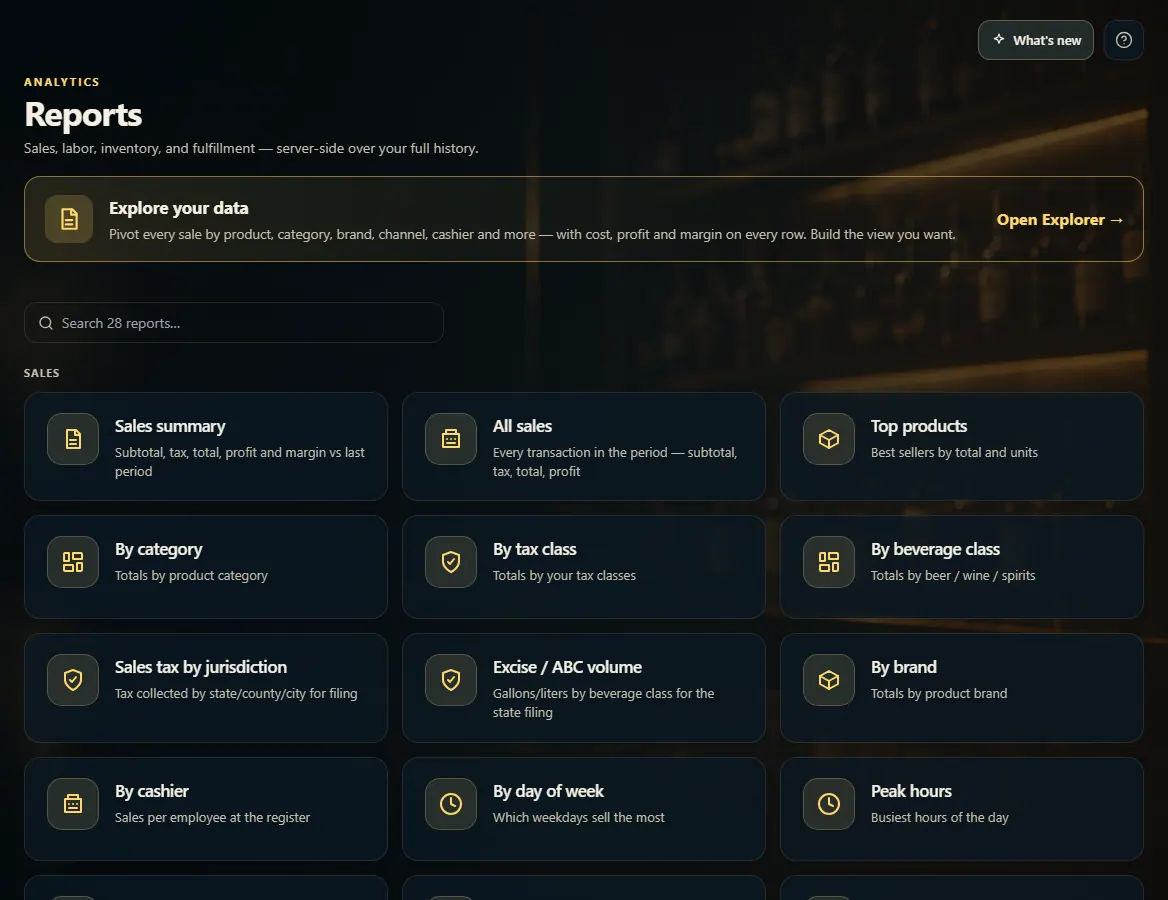
Reports are grouped into Sales, Accounting, Inventory, Cash and Labor. Search narrows the list; Explore your data builds your own view.
123
1Build your own view of every sale.
2Search the reports.
3Click a report to open it.
2. Set the dates and export
Pick a range and the report recalculates over your full history. Export CSV or Download PDF takes the same numbers with you.
 123
123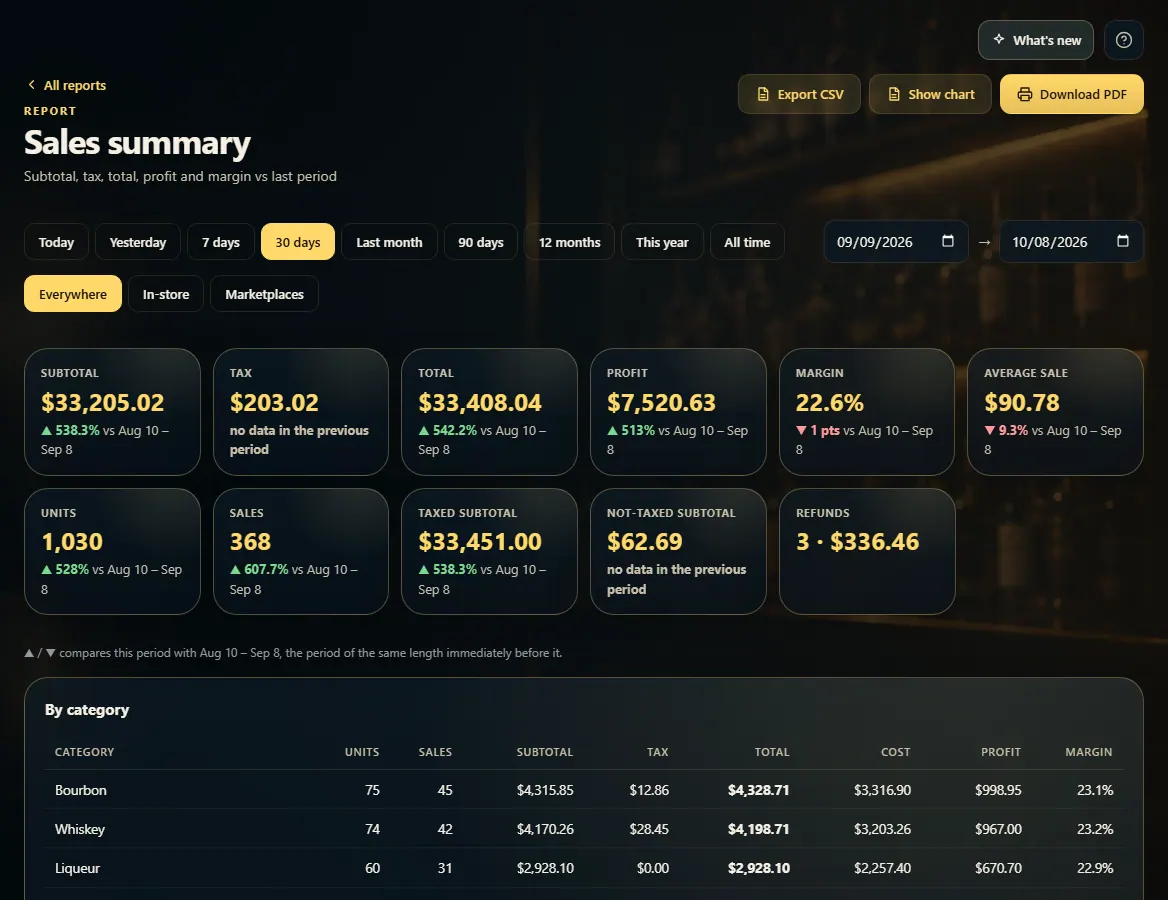 1234
1234